🗣️ Speech-to-PDF Converter
Speak, transcribe, and generate a PDF—all in one place.
Speech to PDF Converter: Transcribe Voice to Text & Save as PDF
A Speech to PDF tool is a powerful online utility that instantly converts your live spoken words or audio input into typed text and then packages it into a professional, shareable PDF document.
Whether you’re a student taking notes, a professional documenting a meeting, or just need to dictate a letter, our free, accurate, and secure Speech to PDF converter provides the fastest way to get your thoughts down in a formal, portable format. Simply click record, speak clearly, and save the resulting document as a PDF in seconds.
What is a Speech to PDF Converter?
The Speech to PDF process uses advanced voice recognition technology to capture human speech. It is a two-step process:
- Speech-to-Text (Transcription): The tool listens to your voice and translates the audio stream into text with high accuracy.
- PDF Generation: The resulting text is then instantly formatted and embedded into a secure, universally readable PDF file.
This tool is designed for adult users (18+) who need a reliable, on-the-go solution for converting verbal information into a text-based document.
Official Output Formats (Text to PDF)
After your transcription is complete, the tool instantly generates the following standard output:
| Format | Description | Use Case |
| Plain Text | A clean, raw text output (for quick copying/pasting). | Sending an email or text message. |
| Editable Document | The text in an on-screen editor (for quick proofreading). | Fixing transcription errors or adding headers. |
| PDF Document | The final transcribed text saved as a non-editable, formal PDF. | Sharing meeting minutes or submitting an assignment. |
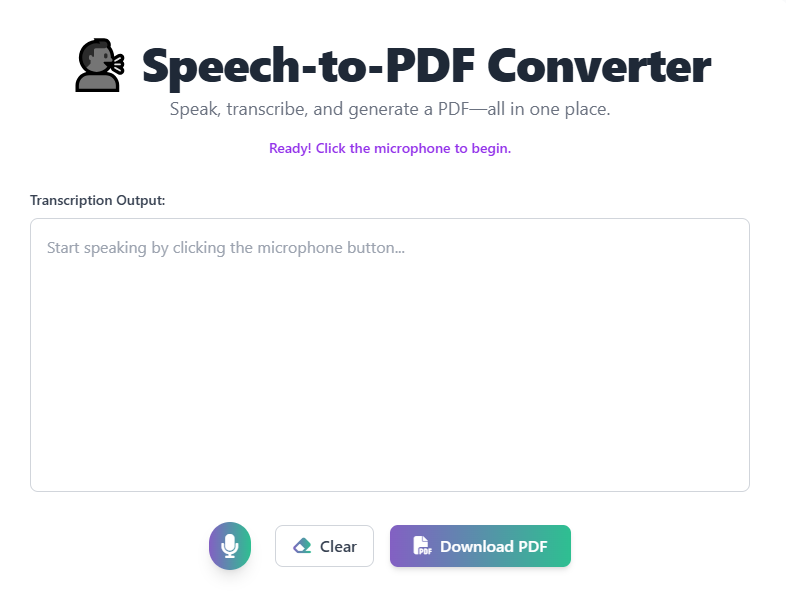
How Our Online Speech to PDF Tool Works
Our intuitive converter performs the required transcription and conversion instantly:
- Input: You speak clearly into your device’s microphone.
- Transcription: The voice recognition engine converts your speech into text in real-time.
- Formatting: The text is automatically cleaned and prepared for the PDF format.
- Output: The result is delivered as a downloadable PDF file and editable text on screen.
Step-by-Step Guide: Use Our Free Speech to PDF Tool
- Open the Tool – Navigate directly to our Speech to PDF page.
- Allow Access – Grant the tool permission to use your microphone (a one-time pop-up).
- Start Recording – Click the “Start Dictating” or “Record” button.
- Speak Clearly – Begin speaking at a normal pace. Pause when you are finish.
- Stop & Review – Click the “Stop” button and quickly review the transcribed text for accuracy.
- Download PDF – Click the “Save as PDF” button. The document will download instantly.
Why Use Our Free Online Speech to PDF Converter?
- Ultimate Productivity: Write faster than you can type, capturing full conversations, lectures, or ideas instantly.
- Accurate Transcription: Uses the latest AI to ensure high fidelity between speech and text output.
- Secure & Private: Your audio is processed locally and immediately deleted; we do not store your voice data or transcripts.
- Formal Output: PDF is the universally accepted format for formal documents, ensuring your notes look professional.
- 100% Free: Unlimited use for all your transcription and PDF creation needs.
FAQ – Speech to PDF Converter
Q1: How accurate is the speech recognition?
It is very accurate; however, the quality depends on how clearly you speak, your speed, and your microphone’s quality.
Q2: Can I transcribe audio files (like MP3s) or only live speech?
This tool is primarily designed for live dictation using your microphone. For transcribing existing audio files (like MP3, WAV), you may need a separate file-upload transcription service.
Q3: Does the tool support different languages?
Therefore, look for a language selection option on the tool interface before you begin dictating.
Q4: Is the PDF generated editable after download?
Alternatively, if you need to edit the file, you would need a separate PDF editor or use the editable text provided on-screen.
Q5: What should I do if the transcription is poor?
Finally, if the issue persists, try speaking slightly slower and enunciating more clearly.
 — Instantly compress images, convert files, calculate finance & health metrics, and access 50+ handy tools in one place. Fast, reliable, and built for everyone.