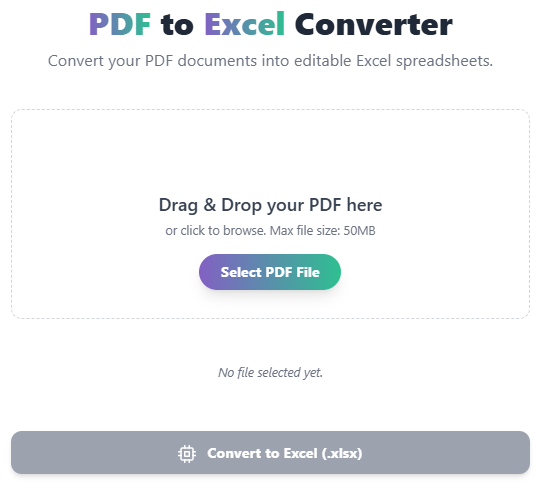
PDF to Excel Converter
Convert your PDF documents into editable Excel spreadsheets.
Drag & Drop your PDF here
or click to browse. Max file size: 50MB
💾 PDF to Excel Converter: Free, Fast & Accurate Online Tool
A PDF to Excel converter is an essential, globally recognized tool used by analysts, accountants, students, and businesses to efficiently transform static data trapped in PDF documents into dynamic, editable spreadsheets.
While manually retyping data is time-consuming and error-prone, calculating your conversions instantly provides a useful “snapshot” of your current data processing efficiency. By using our online PDF to Excel tool, you can quickly convert single or multiple files, helping you make informed decisions about your workflow and data management strategy.
What is the PDF to Excel Conversion Process?
PDF to Excel conversion is a simple, standardized process that uses advanced Optical Character Recognition (OCR) and data structure analysis to translate the complex layout of a PDF file into a cell-based format. The conversion formula applies to all standard PDF documents and provides a measure of data transformation (including text, numbers, and tables) relative to the document size.
Key Conversion Outcomes (Format & Structure)
After you convert your PDF, our tool ensures your data aligns with the standard, expected structure of a Microsoft Excel workbook:
| Outcome | Description |
| Data Integrity | Text, numbers, and formulas are preserved without corruption. |
| Table Recognition | Automatically detects and maps structured data (tables) into rows and columns. |
| Formatting | General formatting is maintained, allowing for immediate editing and calculation. |
| Multi-Page Handling | Converts multi-page documents into a single workbook with multiple sheets, or a single sheet (user choice). |
How Our Online PDF to Excel Converter Works
Our intuitive conversion tool performs the required transformation instantly and supports all versions of PDF and Excel formats (.xlsx, .xls):
- Input: You upload your PDF file (or drag-and-drop it).
- Processing: The tool uses advanced algorithms to parse the PDF structure and extract tables and text.
- Assessment: The system meticulously maps the extracted data into the row-and-column structure of an Excel file.
- Output: The result is a downloadable
.xlsxfile, which contains your accurate, editable data.
Step-by-Step Guide: Use Our Free PDF to Excel Tool
- Open the Tool – Navigate directly to our PDF to Excel Converter page.
- Upload File – Click “Upload” or drag-and-drop your PDF document.
- Configure Settings – Next, choose options (e.g., convert each page to a new sheet, or all to one sheet).
- Click Convert – The tool will process the document instantly and deliver your result.
- Download Result – Check your converted Excel file and begin working with your data.
Why Use Our Free Online PDF to Excel Converter?
- Instant & Accurate: Transform complex financial reports or data tables in seconds.
- OCR Support: Furthermore, it works perfectly with scanned PDFs (images of text), turning them into editable data.
- Data Security: Our servers automatically delete files after conversion for guaranteed privacy.
- Mobile Friendly: Use this converter on your phone or tablet while on the go.
- 100% Free: Enjoy unlimited conversions for personal and professional use.
FAQ – PDF to Excel Converter
Q1: Is this tool accurate for complex tables?
A: Generally, yes. Our tool uses advanced table detection logic designed to handle complex cell merging and borders. However, for extremely unusual or heavily formatted PDFs, we recommend a quick review after conversion.
Q2: What is the file size limit for conversion?
A: We support large files, but for optimal performance, we recommend files under $50 \text{ MB}$. Larger files may take longer to process depending on server load.
Q3: Can I convert multiple PDF files at once?
A: This specific tool is optimized for single-file, high-accuracy conversion. We plan to introduce a batch conversion feature soon.
Q4: Why does my converted file look messy?
A: If the original PDF was poorly structured (e.g., text that looked like a table but wasn’t), conversion may be challenging. To ensure the best results, make sure your original PDF has clear, structured tables.
Q5: What should I do if my Excel file has an error?
A: Don’t worry. If you notice a significant error, try re-uploading the file. If the issue persists, the PDF’s complexity may require manual adjustment in Excel. We always recommend consulting a doctor for a full health checkup and personalized advice.
 — Instantly compress images, convert files, calculate finance & health metrics, and access 50+ handy tools in one place. Fast, reliable, and built for everyone.